

View Source Code
Browse the complete example on GitHub
What’s inside?
The VLMExample showcases cutting-edge multimodal AI capabilities:- Vision Language Models - Analyze images and generate text descriptions
- Image Input Processing - Handle image selection from gallery or camera
- Multimodal Understanding - Combine visual and textual information
- Jetpack Compose UI - Modern, declarative UI for image display and results
- Coil Integration - Efficient image loading and rendering
- On-device Inference - Complete privacy with local VLM processing
- Interactive Q&A - Ask questions about images and get contextual answers
What are Vision Language Models?
Vision Language Models (VLMs) are AI models that can process both images and text simultaneously, enabling them to:- Describe images - Generate detailed captions of what’s in a photo
- Answer visual questions - Respond to queries about image content (“What color is the car?”)
- Detect objects - Identify and describe objects, people, and scenes
- Read text in images - Extract and interpret text from photos (OCR-like capabilities)
- Understand context - Grasp relationships between objects and spatial arrangements
- Generate insights - Provide analysis, suggestions, or interpretations of visual data
- Accessibility tools that describe images for visually impaired users
- Product identification and information lookup
- Document analysis and data extraction
- Visual search and discovery
- Educational apps that explain diagrams and illustrations
- Real estate apps that describe property photos
- Medical imaging assistants for preliminary analysis
Environment setup
Before running this example, ensure you have the following:Android Studio Installation
Android Studio Installation
Download and install Android Studio (latest stable version recommended).Make sure you have:
- Android SDK installed
- An Android device or emulator configured
- USB debugging enabled (for physical devices)
Minimum SDK Requirements
Minimum SDK Requirements
This example requires:
- Minimum SDK: API 24 (Android 7.0)
- Target SDK: API 34 or higher
- Kotlin: 1.9.0 or higher
- At least 4GB RAM (6GB+ recommended for better performance)
- Vision models are larger and more compute-intensive than text-only models
VLM Model Bundle Deployment
VLM Model Bundle Deployment
This example requires the LFM2-VL-1.6B vision language model bundle.Step 1: Obtain the model bundleDownload the LFM2-VL-1.6B bundle from the Leap Model Library.Step 2: Deploy to device via ADBUse the Android Debug Bridge (ADB) to transfer the model to your device:Note: The VLM bundle is larger than text-only models (typically 1-3GB). Ensure you have sufficient storage on your device and a stable connection during transfer.Alternative deployment location:If
/data/local/tmp/ is not accessible, use device storage:Dependencies Setup
Dependencies Setup
Add the required dependencies to your app-level About Coil:Coil is a Kotlin-first image loading library for Android that:
build.gradle.kts:- Efficiently loads and caches images
- Integrates seamlessly with Jetpack Compose
- Handles image transformations and processing
- Provides modern coroutine-based APIs
How to run it
Follow these steps to start analyzing images with VLMs:-
Clone the repository
-
Deploy the VLM model bundle
- Follow the ADB commands in the setup section above
- Ensure the bundle is accessible at
/data/local/tmp/liquid/LFM2-VL-1_6B.bundle
-
Open in Android Studio
- Launch Android Studio
- Select “Open an existing project”
- Navigate to the
VLMExamplefolder and open it
-
Verify model path
- Check that the model path in your code matches the deployment location
- Update if you used a different path
-
Run the app
- Connect your Android device or start an emulator
- Click “Run” or press
Shift + F10 - Select your target device
-
Select an image
- On first launch, the app will load the VLM model (this may take 10-30 seconds)
- Tap the “Select Image” button
- Choose an image from your device’s gallery
- Alternatively, take a photo if camera integration is enabled
-
Analyze the image
- After selecting an image, it will be displayed in the app
- The VLM will automatically analyze the image
- View the generated description or ask questions about the image
- Try different prompts: “What’s in this image?”, “Describe the scene”, “What colors do you see?”
Performance Note: Vision models are computationally intensive. First-time inference may take 5-15 seconds on mobile devices. Subsequent inferences on the same or similar images will be faster as the model stays loaded in memory.
Understanding the architecture
Image Selection Flow
The app uses Android’s image picker to select photos:VLM Integration Pattern
Loading and using the vision language model:- Always unload models in
onCleared()to prevent memory leaks - Never use
runBlockinginonCleared()- it causes ANRs - Use async cleanup with
CoroutineScope(Dispatchers.IO).launch - Catch exceptions to ensure cleanup doesn’t crash the app
Coil Integration for Image Display
Using Coil to efficiently display selected images:Interactive Q&A Mode
Allow users to ask questions about images:Memory Management
Vision models require more memory. Implement proper lifecycle handling:Results
The VLMExample demonstrates powerful image understanding capabilities: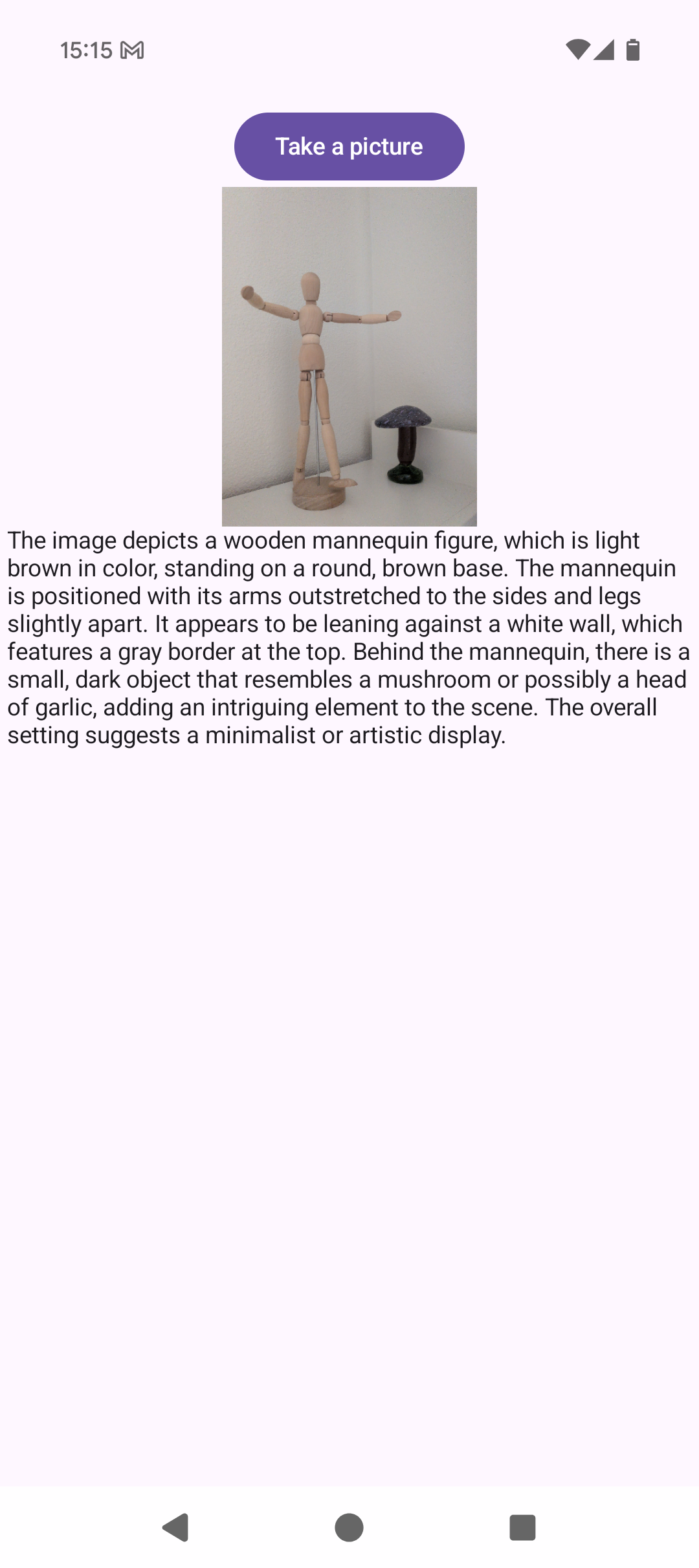 The interface shows:
- Selected image displayed clearly with Coil
- AI-generated analysis below the image
- Smooth, responsive UI even with large images
- Professional Material3 design
Further improvements
Here are some ways to extend this example:- Camera integration - Take photos directly in-app for immediate analysis
- Multi-image support - Compare and analyze multiple images simultaneously
- Batch processing - Process entire photo albums with progress tracking
- Custom prompts - Let users enter their own questions about images
- Object detection - Highlight detected objects with bounding boxes
- Text extraction - Pull out text from images (receipts, documents, signs)
- Image editing suggestions - Recommend crops, filters, or enhancements
- Accessibility features - Auto-generate alt text for images
- Favorites and history - Save analyzed images with their descriptions
- Export functionality - Share analysis results or create reports
- Comparison mode - Analyze differences between two images
- Real-time video analysis - Process camera frames in real-time
- Multilingual descriptions - Generate descriptions in different languages
- Style transfer guidance - Describe artistic styles and suggest transformations